LED FEEDBACK ABLETON 12.4.1 LOOPER STATE REC PLAY OVR CSS 3.1.1

I’m trying to set up LED feedback for the Rec/Play/Overdub states of Ableton Live 12.4.1’s Looper plugin on a Midi Fighter Twister. I would like to use the indicator LED located directly below the encoder push switch (Button 202, Note 8/1), with a different color displayed for each state.
My setup consists of 8 separate tracks, each containing 2 Looper devices. Each Looper is mapped to an Encoder Push Switch using the multifunction button.
What I would like to achieve is:
- REC = Red
- PLAY = Green
- OVR (Overdub) = Blue
so that the LED automatically changes color whenever the Looper changes state.
Could someone explain the detailed procedure to achieve this? I assume it should be possible through the “Reaction” function, but I can’t figure out where and which values need to be entered to make it work.
I’ve been struggling with this for quite some time and I’m going crazy trying to figure it out.
Thanks in advance for your help and attention.

The current state of the Looper can be got from parameter 1 of the device.
0.0 = stopped / empty
1.0 = recording
2.0 = playing back
3.0 = overdub
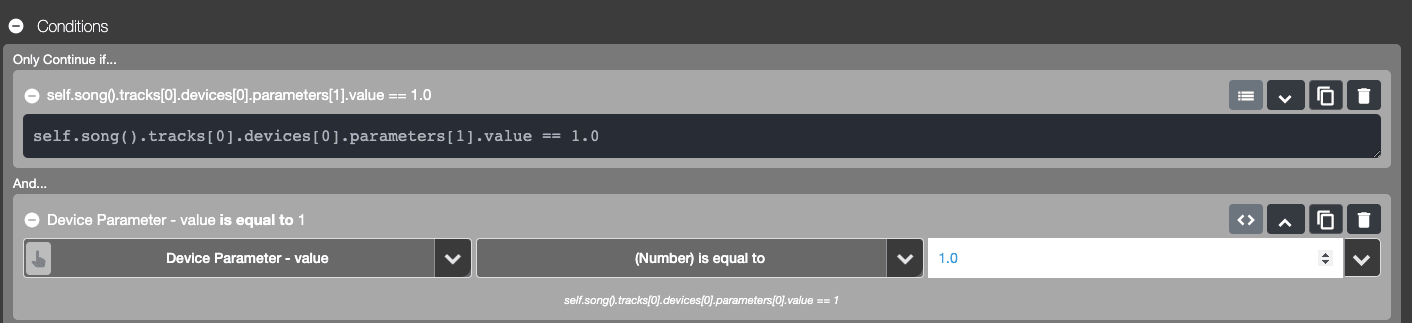
Use the condition section of the Action block to the check for each state, i.e. if looper state is equal to 1.0, send red velocity value to the midi input.
Either way in the image below can be used.
If using the menu system remember to set the Path menu to the correct track, device, parameter number
self.song().tracks[0].devices[0].parameters[1].value == 1.0

Sign up
User registration is currently not allowed.
JohnC thank you very much for your reply. Unfortunately, I am not a programmer, and I have probably missed some steps along the way.
I would really like to have this feature available so that I can complete my setup and finally start performing my compositions.
Could you please explain the entire procedure in detail, step by step, in a simple and clear way?
Thank you again so much for your time, interest, and assistance. I truly appreciate your help.