Mute Sends

Hello.
Track Send works great, but is there are also way to add mute/unmute specific send?
Hello Glenn,
thank you for set/get_data(), it looks like much better solutions then my dummy m4l device. I have to test it how to use.
“…One option would be to use specific Track Names, so that we can link saved_send_values to the corresponding track_name.”
How to get from name of the track the number of the track? Can track be selected by track name or must the number of tack be obtained from the name first?
Also, Listener “track name has change” can be used for update pointer to tracks (names)…

With a Reaction, you can Loop through all the Tracks (or even Visible or Return Tracks) and set a Condition that compares the saved name to that of each Track. For this to work, each Track would need a unique name (or at least a small unique ID).
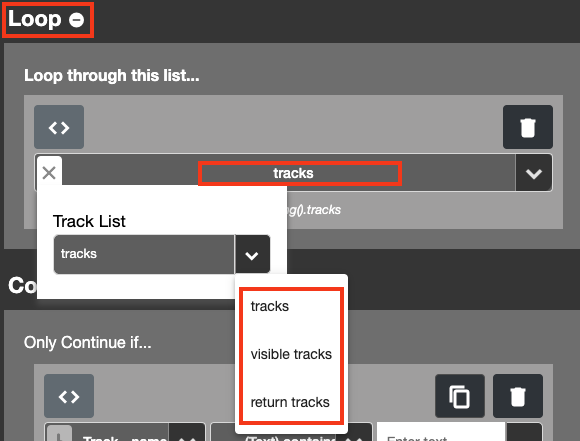
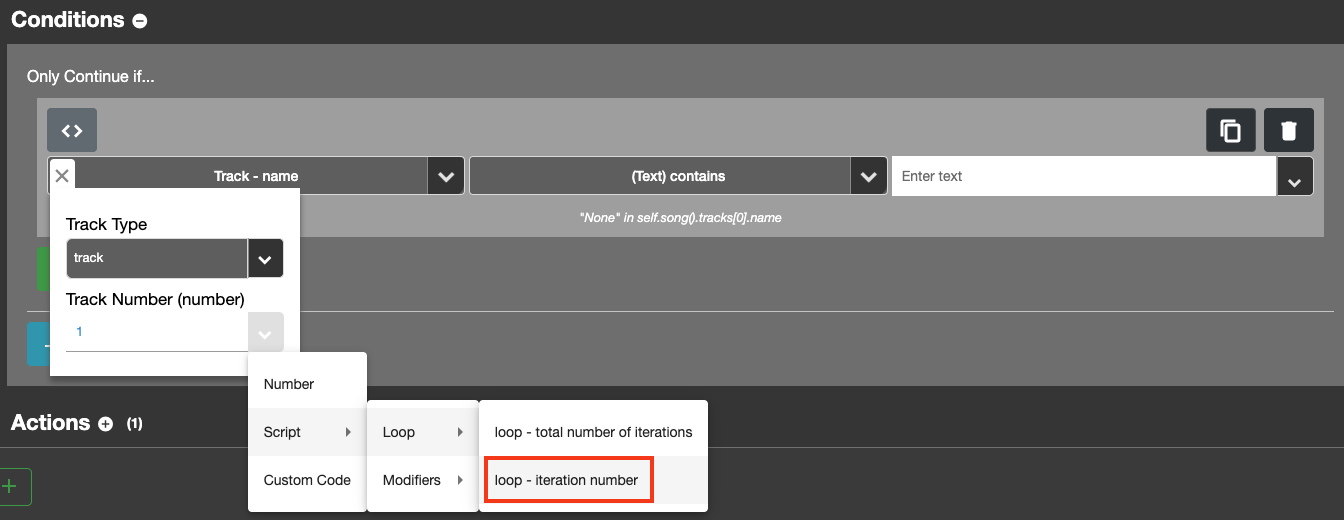
The Loop produces a loop_number that you can use as index number in your Condition:
In the second part of the Condition you can select either:
- “Exactly Matches” if the full name needs to match
- “Contains” when you’re using a little identifier in the name
The 3rd part of the Condition needs to contain the Text you want to compare each name with. You can either enter a fixed text or use the dropdown menu for more options like Modifiers or Custom Code.
Then, once the Condition has found the right Track, you’ll need to use that loop_number again in the Action, that will be the number of the track you’re looking for.
Once you’ve done all the Actions you wanted to do, you could also add an Action to “Exit the Reaction”. That way, the Reaction won’t keep on looping through all the Tracks when it has already found the one you were looking for.
Hello Glenn,
thank you for Loop explenation!
Regarding
The Custom Code construction looks like this

-
[track].set_data(key, value)
-
[track].get_data(key, default_value)
…cant find correct code construction for set/get_data.
I try syntax combinations among others:
self.song().track.get_data(1, key1, None)
self.song().track(1).get_data(key1, None)
track.get_data(1, key1, None)
track(1).get_data(key1, None)
get_data(1, key1, None)
But with no results.
For example, what is corect code combinaton to set in Track 1 in key1 value 222?
CSS can help you in finding the correct code construction whenever you’re unsure. In the next picture I made a temporary Set Name Action from the TRACK submenu to find out how the code points to a Track:
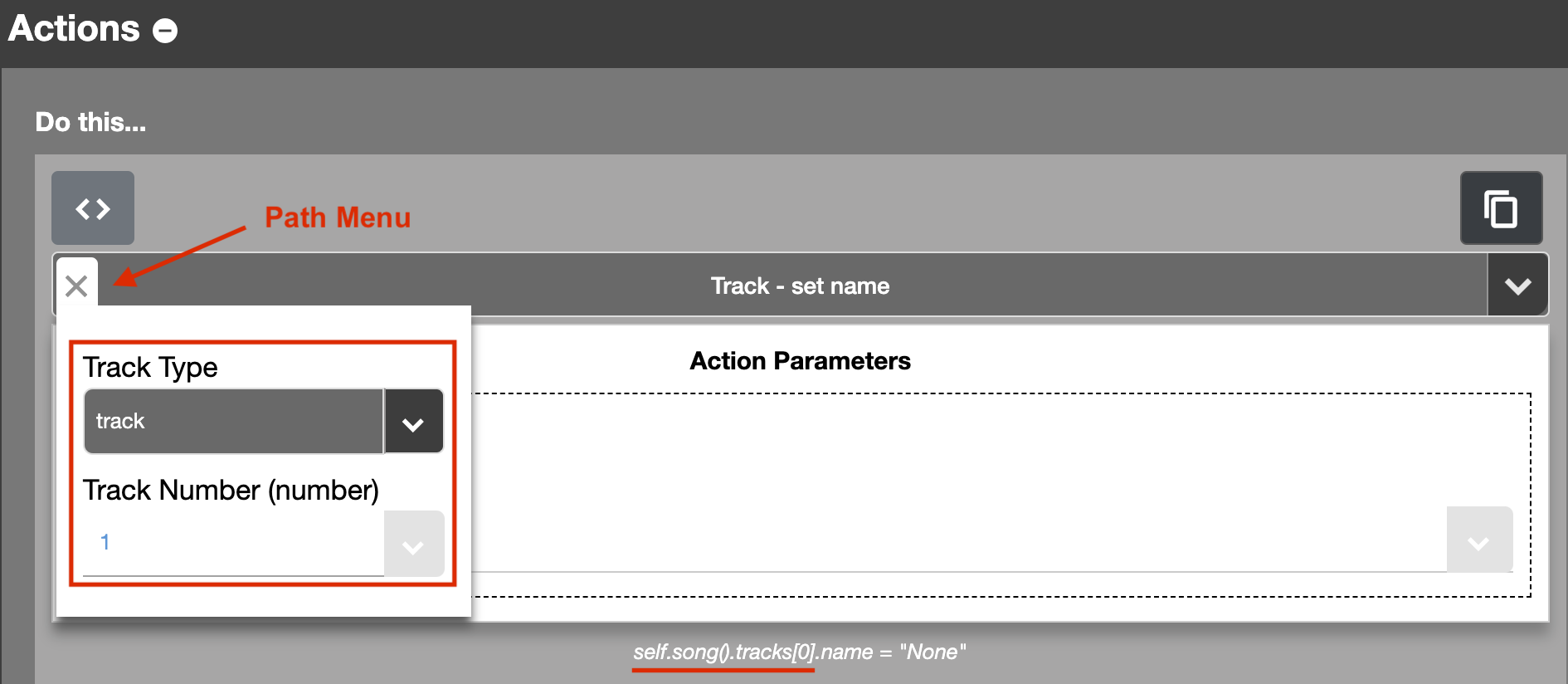
As you can see in the “Path Menu”, Track 1 is selected by default (there’s a lot of other options in the Path Menu as well). The code that points to Track 1 is at the bottom of the Action (underlined by me):
self.song().tracks[0]
A few points to note about this section of the code:
tracksis written with an s at the end. It is a list that contains all of the tracks, that’s why the list’s name is written in a plural form.[0]is the index number that points to the track_number that was selected in the Path Menu. There’s 2 things to notice:- The index number is put in between square brackets [ ]
- The first item in a list (in this case Track 1) starts at index number 0. So whenever you need the index_number of a Track, subtract 1 from the track_number.
Constructing set_data
With this info we can construct set_data and get_data for Track 1:
self.song().tracks[0].set_data("key1", 222)

self.song().tracks[0].get_data("key1", None)
A few things I want to point out:
- Notice how I put key1 inside double quotes ” “. In Python, a text string needs to be put inside of quotes (preferably double quotes but single quotes work too).
- Notice how None is not put inside quotes. That’s because None isn’t text, it’s a Python keyword; in other words, something with internal meaning to Python. It means as much as nothing.
An important detail when working with Custom Code
Python uses indentation to indicate blocks of code. Indentation means spaces before a line of code. If the indentation is incorrect, then your code will not behave correctly.
In this case, there’s no need for indentation, so we don’t want any space at the start of a line of code.
How to see the result from get_data in your log
For testing purposes, you might want to log whatever result get_data is returning. First set up the following Action:
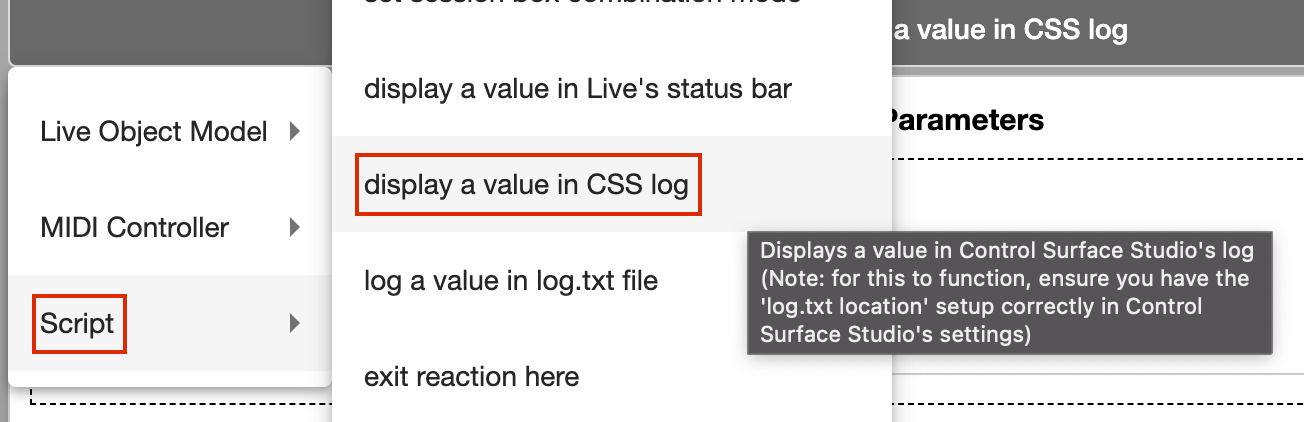
Then, use the dropdown menu to select Custom Code and enter the get_data line of code we constructed earlier:
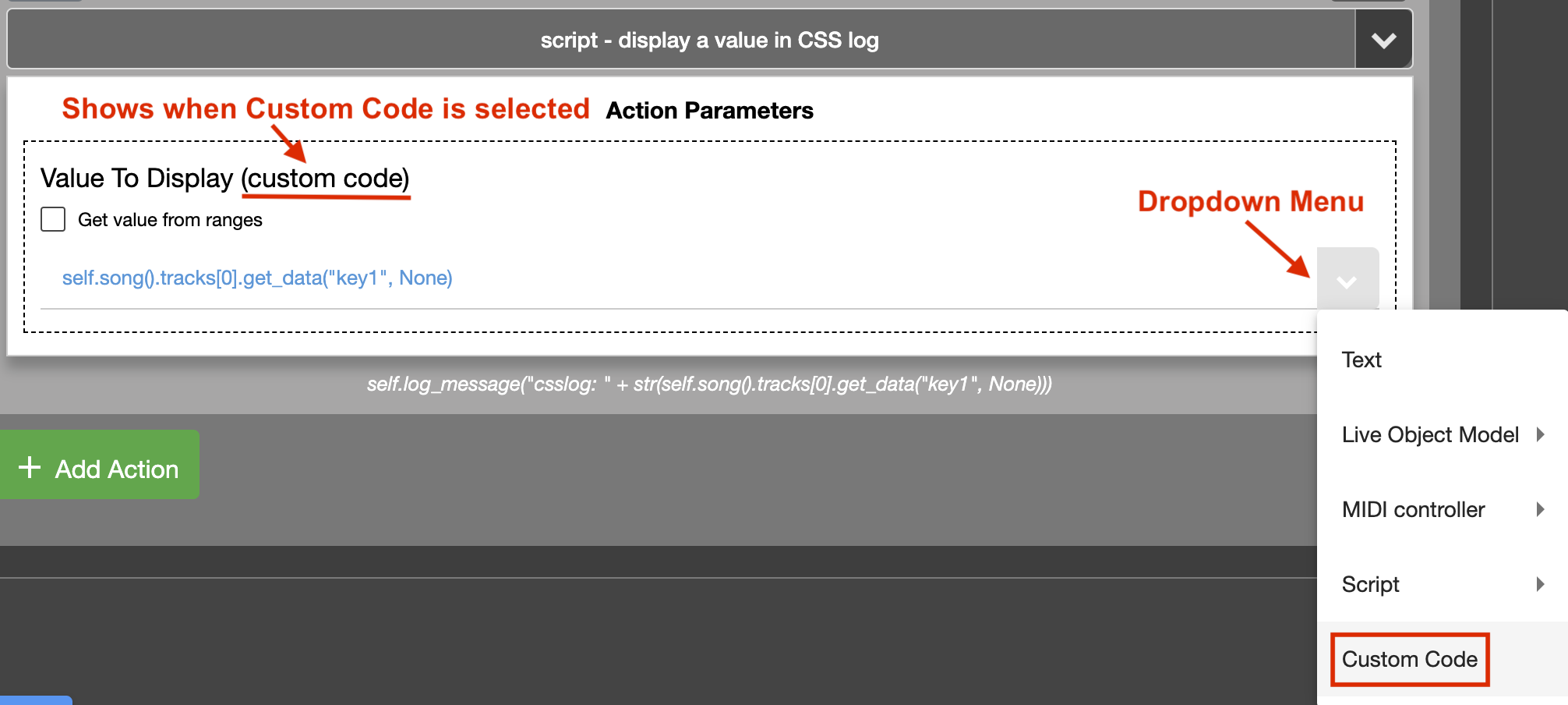
If we print get_data‘s result to the log before we used set_data then we should see None in the log. If we print the result after using set_data then we should see 222 in the log.
Reminder: for whatever you’ve set using set_data to persist over other Ableton Session, you’ll need to have your current Ableton Session saved before you quit.
Sign up
User registration is currently not allowed.