Overview
In this article I’ll show you how to create a mapping which scrubs the arrangement view timeline.
We will do this with a Reaction mapping type in Control Surface Studio.

I’ll show you to variations of this, one for an Absolute input type and one for a Relative input type.
There is an example script file linked in the Article Info section on this page wich contains the completed reactions for both versions. You can download and import this into CSS via the ‘My Scripts’ tab.

For this example, ‘knob 1’ will be the name of the ‘Absolute’ input on my midi controller which I want to control the arrangement scrubbing with and ‘encoder 1’ is the name of the ‘relative’ input. I will assume you have already added and configured these correctly in your controller template.
What You’ll Need
- A script added and opened inside your copy of Control Surface Studio.
- A controller template created and attached to the script with at least one absolute and/or relative knob set up and configured correctly to your midi controller (e.g., Knob 1 and Encoder 1)
- (Optional) You can download and import the example script and controller template files found in the ‘Article Info’ section on this page.
Part 1: Scrubbing with an Absolute Input
First add a new Reaction mapping in your script via the ‘Add Mapping’ menu 
The Listener
The reaction needs to listen for when you turn the knob on your midi controller so add a listener which waits for this event.
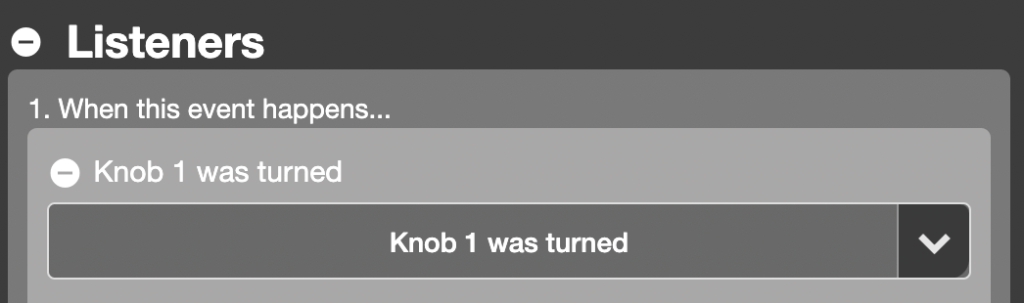
MIDI Controller > knob 1 was turned
Action Block 1
Action Block 1 – Condition
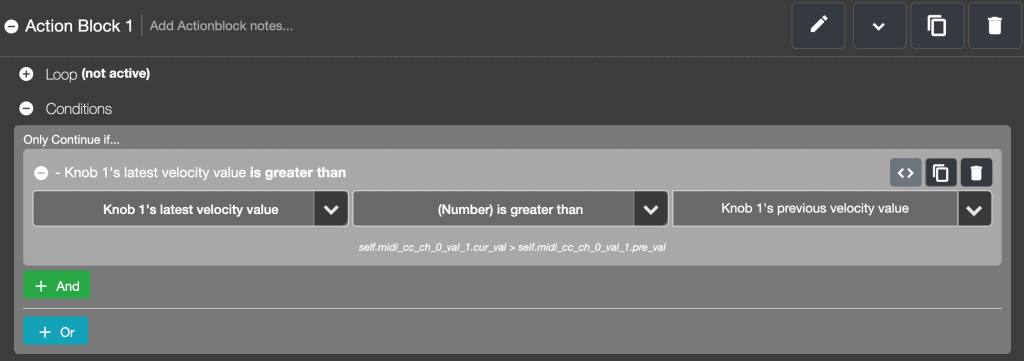
We need to check if the knob is being turned to the right using the conditions section of the block.
To do this, add a condition which checks if the knob’s latest MIDI velocity value sent is greater than its previous velocity value.
These options can be found in the condition menus here:
midi controller > current velocity values
midi controller > previous velocity values
See the below image:
Action Block 1 – Action
In the action section, add the following action:
Live Object Model > Song > scrub by
And then in its ‘Beats’ field, enter: 2.0
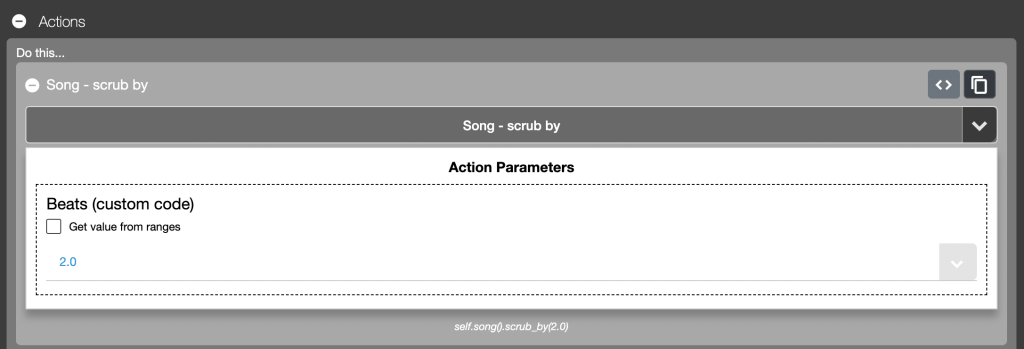
This action will move the arrangement forward by 2.0 (half a bar) each time it receives a higher MIDI velocity value from the knob.
Use higher values to move in bigger increments each time i.e. 4.0, 8.0, 16.0.
The combination of Listener, condition and action which we have created so far has added the following functionality:
When ‘knob 1’ is turned (listener),
If it has been turned to the right (condition),
move the arrangement playhead forward by a value of 2.0 (action).
Great, that covers turning the knob to right, now for when turning to the left.
Action Block 2
Duplicate the first Action block so you now have 2 blocks, and make the following changes to the second block:
Change the condition’s middle menu from ‘(Number) is greater than’ to ‘(Number) is less than’.
If the knob’s latest MIDI value is less than its previous value, this means it is being turned to the left.
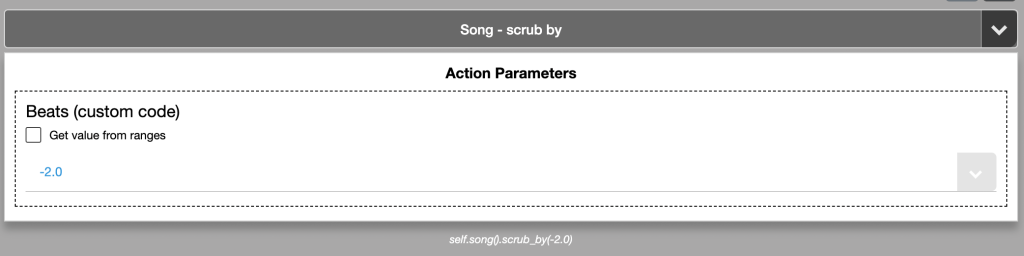
In the action section, change the ‘Beats’ value from 2.0 to -2.0
The playhead is moved to the left by giving it a minus value.
This second action block will now do the following:
if the knob has been turned to the left (condition),
move the arrangement playhead back by a value of -2.0 (action).

And that’s it for the absolute input, you can generate the script into Ableton Live  and will now be able to control the scrubbing from the knob on your midi controller.
The Limitation of Absolute Scrubbing
The problem with using an ‘absolute’ input type for this is when the knob reaches 0 or 127 in its range of midi velocity being output, it will stop sending midi out velocity data, meaning scrubbing will stop.
This makes sense if the physical knob also stops turning at these points but if you have endless encoders, it makes sense to have them set to ‘relative’ so they will continue to send out left/right MIDI velocity data as long you keep turning (please note, your midi controller must have this functionality available in the hardware itself) Read more about input types here.
Part 2: Scrubbing with a Relative Input
As relative inputs generally send 1 MIDI velocity value when turning left and another when turning right, the Action block conditions will need to altered slightly from above to cater for this.
For this example, turning my encoder right sends the MIDI velocity value 65 and turning left sends 63. These are the values which the MIDI Fighter Twister encoders send when they are set to relative mode (See Midi Fighter Utility – Encoder MIDI Type: ENC 3FH/41H)
Yours will probably be different so check what is being sent in the MIDI learn section of CSS:

The settings in the Reaction will be pretty much the same as with the Absolute version above, with only a couple of minor changes:
Listener – Firstly make sure to change this to the encoder which you want to use.
I will be using ‘Endless Encoder 1’ from my controller template.
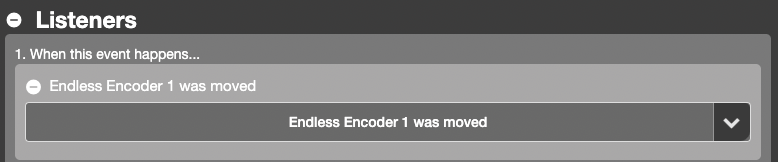
Action Block 1 – change the condition to check that the endless encoder’s latest velocity value is equal to 65.

Action Block 2 – change the condition so it checks the encoder’s latest value is equal to 63.

All other options can remain the same as the ‘absolute’ version. You can now save this and generate the script into Ableton Live.
The endless encoder will continue to move the playhead left/right until reach the beginning/end of the timeline.
Summary
| Input Type | Right Turn Value | Left Turn Value | Scrub Amount | Notes |
|---|---|---|---|---|
| Absolute | > previous value | < previous value | ±2.0 | Stops at 0 or 127 |
| Relative | 65 | 63 | ±2.0 | Endless scrubbing possible |