The Highlight Navigation mapping type is for controlling the position of the visual highlight in your Ableton Live session. The location of the highlight is used to choose the selected track, selected scene and highlighted clipslot/clip.
This mapping type allows for controlling the Highlight in a number of ways.
- Select a specific track or scene number
- Scroll through all tracks or scenes
The Settings Menu
Controller Input selection
As with other mapping types, select the physical input to control the mapping with in the:
Basic Settings > Controller Input menu.
The Navigation section
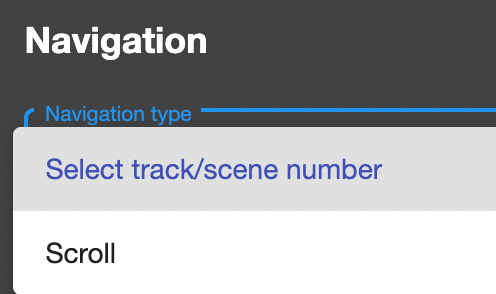
The Navigation Type allows you to choose between Select track/scene number and Scroll. The options below this menu will change depending on your selection.
Select track/scene number
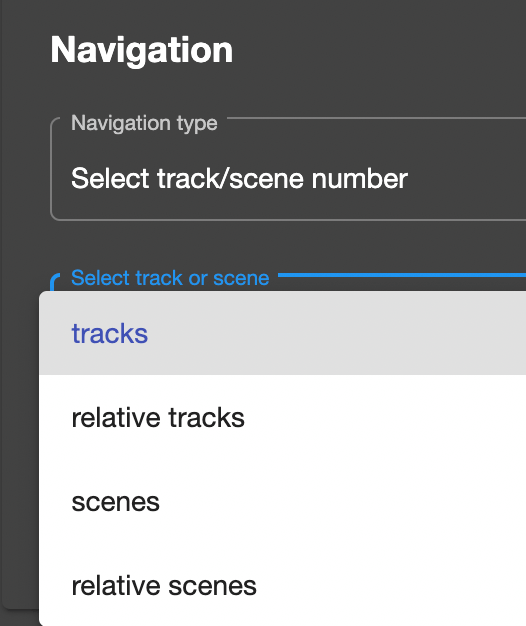
Use this option for selecting a specific track or scene (usually with a button push on your midi controller).
Select track or scene: choose between tracks or scenes. From CSS version 3.0.2 relative tracks or relative scenes can also be chosen. these are relative to the position of the session box if you have one active.
The box below is where you enter the track or scene number. This is the track/scene number which the highlight will move to when you press the button on your midi controller.
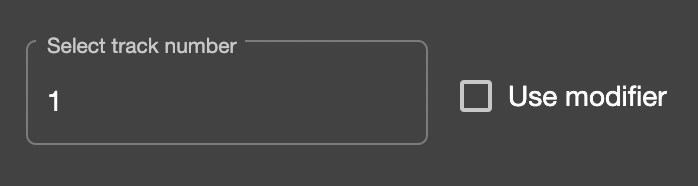
Use modifier: ticking this box changes the number field to a modifier select menu. This allows for using a value which can be dynamically changed via Reactions.
Scroll
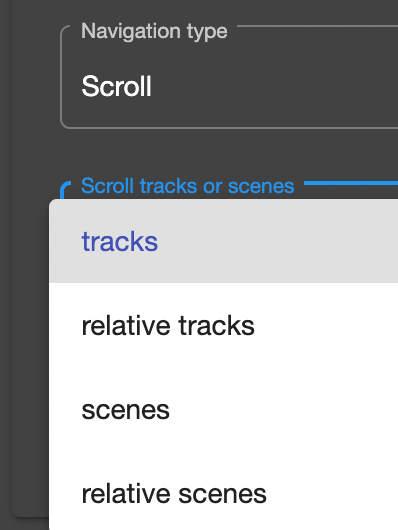
Setting Navigation type to Scroll gives you the ability to scroll through all tracks or scenes in your session with a knob/encoder style control or increment/decrement with 2 buttons.
From CSS version 3.0.2 you will also have relative tracks and relative scenes options. These options focus scrolling to only the tracks or scenes within the session box.
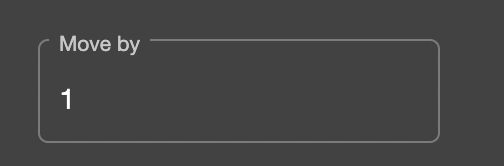
The Move by field is where you can set how many tracks/scenes to move by with each turn/press of the controller input.
Increment/Decrement Scrolling
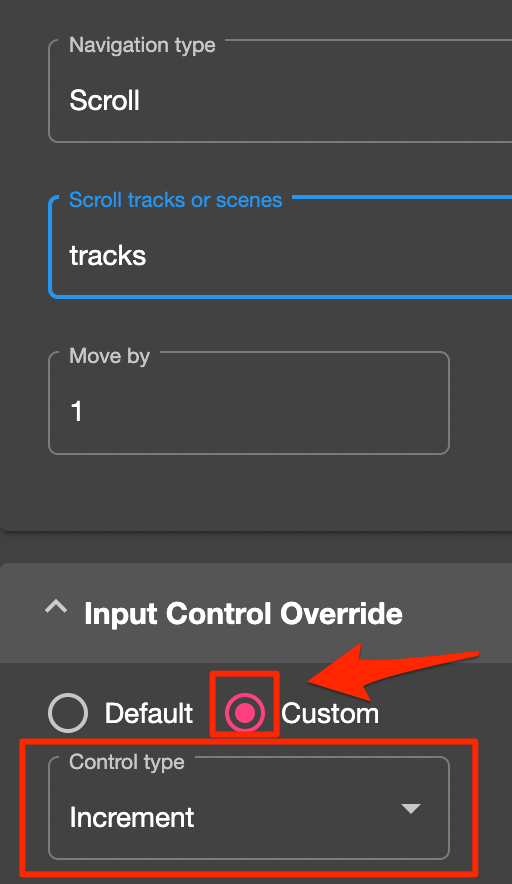
To move the scrolling with a button press, first make sure you have selected the button in the Controller input section, then set the Input Control Override section to custom.
Change Control type to Increment moves the highlight right(if tracks is selected) or up(if scenes is selected). Decrement moves the highlight left(tracks) or down(scenes).
And the ‘Move by’ setting will be used to set how many tracks or scenes to move, with each button press.