‘My Scripts’ is where all of the scripts you have created in CSS are found (scripts are short for MIDI Remote Scripts).

Add a new script
To add a new blank script, click the ‘Add new’ button. A pop up box will appear where you can name the script.
Clicking ‘Add new’ will open the ‘Add new Script’ pop up where you can enter a name for the Script.
Click ‘Add’ to add the script to the My Scripts section.
Click ‘Add & open’ will do the same but will also open the new script in the Script Editor.
Clicking ‘Cancel’ will cancel the creation of the new script.
Import a script
Clicking the Import button will open the import pop up browser, where you can search for a Script json file on your computer and then import it into the My Scripts section.
Note: scripts which were originally created using Control Surface Studio will have a json file included in its folder.
Individual Scripts
Each script in the My Scripts tab has the following buttons:
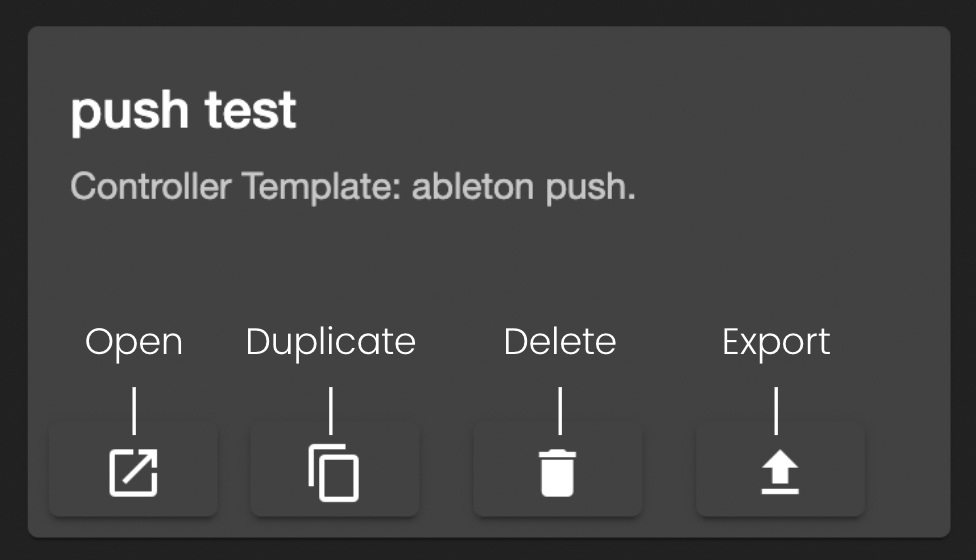
Open Script
Click this button to open the script in the Script Editor.
Duplicate Script
Clicking the duplicate button will duplicate the script. You will see the duplicated script appear immediately at the top. It will be renamed with ‘(copy)’ at the end of its name.
Delete Script
Clicking the delete button will delete the script from Control Surface Studio. If you have previously generated the script into Ableton Live, this will remain in there.
To also delete the script from Ableton Live, go in to Live’s Midi Remote Scripts folder, find and delete the folder.
Export Script
Clicking the ‘Export script’ button will open the save pop up window.
Set a name and location to export the script json file to. script json files can imported back into Control Surface studio.