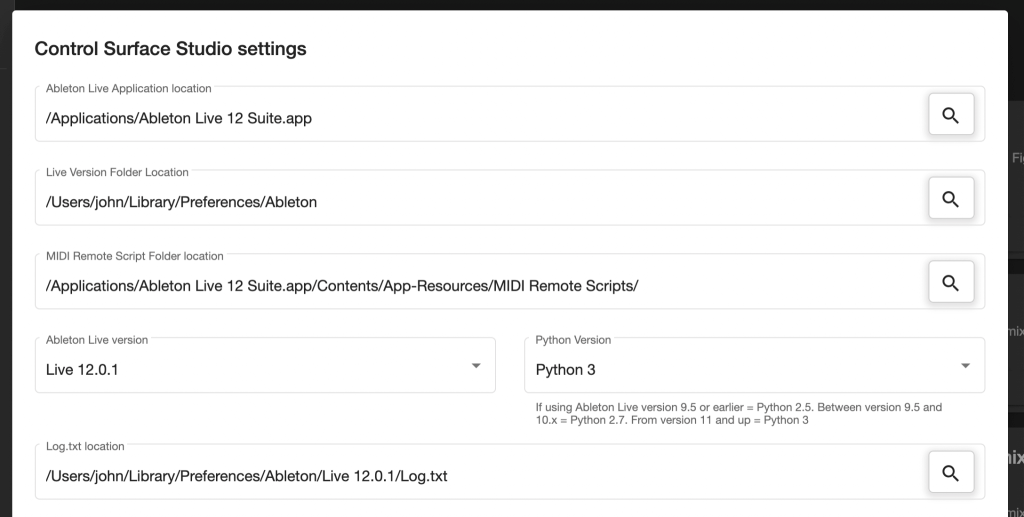
Clicking the ‘CSS Settings’ button opens a configuration menu where you can manage essential paths and toggle various application settings. These options ensure that Control Surface Studio integrates properly with Ableton Live and functions as expected.
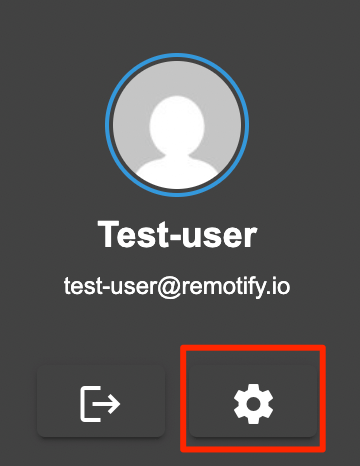
The ‘CSS Settings’ button can be found in a couple of places:
1. In the left column of the home screen (below your user details)
2. At the top of the script manager

Ableton Live Application Location
This setting defines the file path to the Ableton Live application which you have installed on your computer.
To set this path:
- Click the magnifying glass icon to the right of the field.
- A file browser will open, locate and select the Ableton Live application.
- Click Open.
Once selected, the field will be automatically populated with the path to Ableton Live on your computer.
Live Version Folder Location
Ableton Live stores data such as the log.txt file in version-specific folders such as Live 12.1, Live 12.1.5, 12.0.2 etc.
This field should be set to the parent folder of version-specific folders. It will typically auto-populate when you set the Ableton Live Application Location.
If not, you can manually select the correct folder by clicking the magnifying glass icon to the right of this field.
MIDI Remote Script Folder Location
This is the directory where Ableton Live stores MIDI Remote Scripts.
It should auto-populate with the correct location when the Ableton Live Application Location is correctly set. If necessary, you can manually browse to the correct folder.
Manual folder locations:
Mac
C:\ProgramData\Ableton\Live x.x\Resources\MIDI Remote Scripts\
Windows
- Navigate to
/Applications/and locate the Ableton Live application. - Right-click it and select Show Package Contents.
- Navigate to:
/Contents/App-Resources/MIDI Remote Scripts/
Ableton Live Version
This dropdown is auto-populated with all folder found inside the Live Version Folder Location folder.
It lists all detected minor versions of Ableton Live.
Select the version that matches your current working version of Live. This ensures that the log.txt monitor and script generation are aligned with the correct version.
Important
In order for the log panel to display the correct log and error information, this must be set to the correct major/minor version of Ableton Live which you are using. If you don’t it will be monitoring the wrong log.txt file.
Python Version
Control Surface Studio uses a specific version of Python to generate MIDI Remote Scripts. This should match the version required by the selected Ableton Live version.
In most cases, the Python version is set automatically when selecting an option for Ableton Live Version.
Log.txt Location
This specifies the location of the log.txt file to be monitored by Control Surface Studio.
When the Ableton Live Version is selected, this path should automatically update to reflect the correct version folder. You can also set it manually using the file browser.
Display Grid
Enabling this option displays the visual grid in the Controller Template Editor, aiding with layout alignment and positioning.
Auto tags
Adds/remove Auto tags in the mappings table of the script manager.
Disable ‘Are you sure?’ Confirmation Popup
- Unchecked: You will be prompted with a confirmation popup before any deletion actions (e.g., removing a script or mapping).
- Checked: Items will be deleted immediately without confirmation.
Use this option with caution to avoid accidental deletions.
Save / Cancel
- Save: Applies and stores all changes you’ve made in the settings window.
- Cancel: Discards any unsaved changes and closes the settings window.