
Find a track by name and save its Track position number to a modifier.
The modifier can then be used as the track number in any Track Mixer or Device mapping type – Track Volume, Sends, mute, Device Parameter etc…
This is done using 1 Reaction mapping and 1 Modifier.
The following example explains exactly how to set up the Reaction to search for a track named DRUM BUS (You can change the track name to whatever you need),
save its position number to a modifier, then use the modifier as the Track Number in any track or device mapping type.
- Attached to in this page is the completed script. It contains the completed Reaction and a Track Volume mapping as described on this page. Download and import it into CSS.
Then edit the track name in the Reaction to suit your own needs and map the track volume to your own midi controller or add more track and device mappings to use with it.
Add a Reaction mapping type.
In the Listeners section, you want the Reaction to fire/update when the following events happen:
script is initialised (this runs the reaction when the script first loads)
Song > Tracks (this runs the reaction whenever tracks are added, moved, deleted)
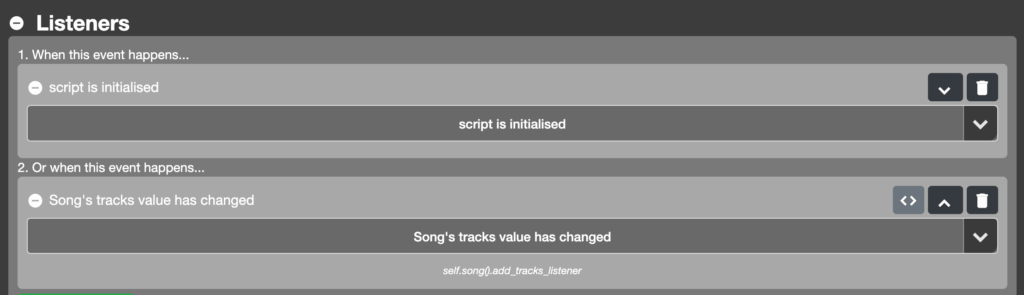
Note: if you also want the Reaction to update whenever you rename a track, add a Track > Name listener for each track you want to listen for changes on (make sure to set the correct track number in the Path Menu for each listener).
It’s not currently possible to add this for all tracks with 1 listener, you’ll need to add a listener for each track number.
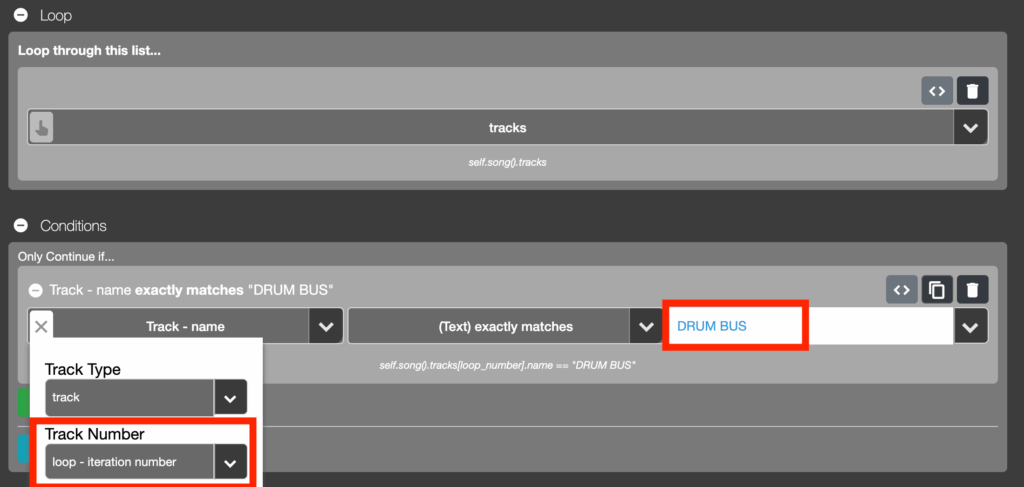
In an Action Block > Loop section, select tracks
– This loops through all tracks
In the Condition section, choose Track Name, (Text) Exactly matches, DRUM BUS
In Track Name’s Path Menu, make sure to select Track number > Loop Iteration Number
– This filters the tracks so only a track named “DRUM BUS” is used in the following action section…
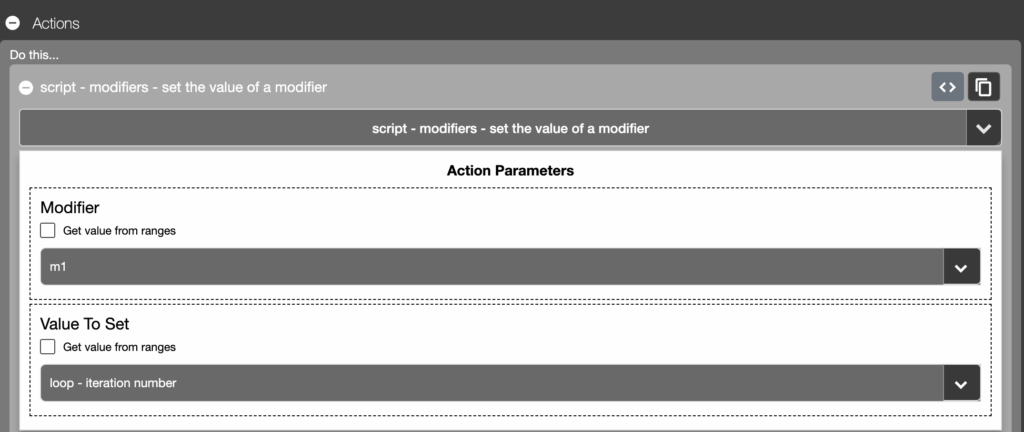
In the Action section, choose: script > modifiers – set the value of a modifier
Modifier: M1
Value to set: script > Loop > loop – iteration number
– The loop iteration number will be the position of the track in your session. 1, 2, 3, 4 etc
Use the Modifier With any Track or Device Mapping Type
Now you use the M1 modifier as the track number for any track or device mappings (volume, sends, mute, device parameter etc). The value of modifier M1 will automatically update with the track number for ‘DRUM BUS’
In the track selection section for any of these mappings,
For ‘Track Type’ select Track, then
tick ‘Use Modifier’ box which appears underneath and select Modifier M1 for Track Number (modifier)

Map to multiple tracks by name
Note: If you want to map to multiple tracks by name, for each one, duplicate the Action block in the Reaction. Then in the duplicate, change the track name in the condition and change the modifer: m2, m3, m4 etc Then use this modifier in your mappings.
