The Mappings Table is where you add and manage all mappings and modes in your script.
Search Filter
Enter text to filter the mappings in the table.
Clear Search Filter
Clicking this button clears all text in the Search Filter
Show Enabled/Disabled Mappings
Clicking this button switches between 3 options.
- Show only Enabled Mappings
- Show only Disabled Mappings
- Show all Mappings
Mappings can be enabled/disabled using the Enable/Disable options in the Bulk Operation Controls below.
All/Any
The search filter allows for adding multiple comma separated keywords to search for. The ‘All/Any’ option changes how these are utilised.
- All: The mapping Table will only display mappings which match ALL of the comma separated keywords in the Search Filter.
- Any: The Mapping Table will display mappings which match ANY of the comma separated keywords in the Search Filter.
Bulk Operation Controls
Most of the buttons in this section will remain disabled until you select mappings in the list below by checking their boxes.
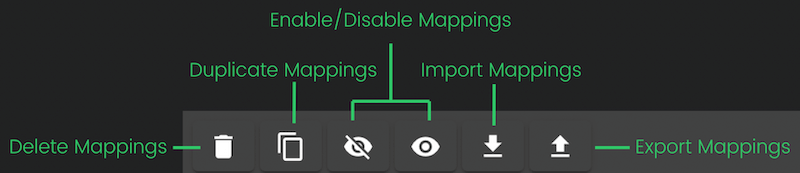
Delete checked items
Clicking this button will delete any mappings which are checked in the list below.
Duplicate checked items
Clicking this button will duplicate any mappings which are checked in the list below.
Disable Checked Items
Clicking this button will disable all checked mappings. Disabled mappings will not be added to the generated script in Ableton Live.
Enable Checked Items
Clicking this button will enable all checked mappings if they are disabled.
Import items
Clicking this button will open the browser popup. Select a script json file and click open. All Mappings and Modes contained in the file will be imported into the script.
Export items
Any checked Mappings and Modes can be exported to a script json file. Clicking the Export button will open the Save To File pop up where you can select the location to save the file to.
Mapping/Mode switcher
Switch between viewing Mappings and Modes.
The Add Mapping Menu
Clicking this will open a menu which contains all Mapping Types which can be added to the script. Click a Mapping Type to add a mapping of that type to The Mapping List below.
The Mappings List
Each individual mapping in the list has its own set of information/functions.
Also note that clicking the mapping name will open its settings form.
Drag & Drop handle
Click and drag this above or below to move the mapping to a new position in the list. Mappings cannot be moved when there is text in the search filter.
Check box
Click the box to check the mapping. Checked items can be deleted/duplicated/exported using the Bulk Controls above the Mapping List.
Type
Displays the mapping type icon and the Mapping Type Name when hovered over with the cursor.
Enabled/Disabled
This column contains a small eye icon, clicking the icon will enable/disable the mapping. When a mapping is disabled it will appear visually dimmed, the eye icon will have a line through it and the mapping will not be included in the script when it is generated in Ableton Live.
Mapping name
The editable name of the mapping (can be edited in the mapping settings form).
Input
The Controller Input which the mapping is assigned to. The options in the Input menu are pulled from the currently assigned Controller Template (which is displayed in the Controller Template Panel).
Mode
The mode which the mapping is set to. The options in this menu are taken from the Modes which are available in the Modes view of the Mappings Table.
Tags
The list of Tags which have been assigned to the mapping. These can be added in the Mapping Settings Form.
Click a tag to filter the list of mappings by that criteria.
If the ‘AutoTag’ setting is turned on in the CSS Settings Menu, it also displays the following 3 AutoTags:
- The Selected Controller Input
- The selected Mode
- The Mapping Type
Note: Reactions and Session box mappings don’t show a selected Controller Input.
Clicking the plus icon will open the Mapping Settings Form where you can add/edit a mapping’s list of Tags in the Tags & Notes section.
Modes
The available modes can be viewed by clicking the Mapping/Mode Switcher.
Modes are used to group mappings into ‘pages’ of mappings which can be switched while using the script via the ‘Mode Selector’ mapping type or a Reaction.
Global
1 mode can be selected as ‘Global’. The Global mode will always be active in the script.
The first none global Mode at the top of the list will be activate when the script is first enabled in Ableton live along with the selected Global mode.